1. System Introduction
1.1 What is the System?
Times FM System is a live streaming channel management platform that allows administrators to manage radio/online broadcast channels, monitor broadcast status in real-time, and oversee system users.
1.2 Key Features
- Live Dashboard — Overview of all channel statuses at a glance
- Channel Management — Create, edit, delete and toggle channel status
- User Management — Create and manage user accounts with role-based access
- Theme Toggle — Switch between Light and Dark mode
- Activity Logging — Every action is securely recorded
- Personal Profile — Update your name, email and password
1.3 Users and Roles
| Role | Description | Permissions |
|---|---|---|
| Administrator | System administrator | Full access (read, create, edit, delete) |
| Owner | System owner | All administrative permissions |
| User | Regular user | Cannot access admin (reserved for future use) |
ⓘ Note
Using this system requires a registered account with the Administrator or Owner role to access the administrative sections.
2. Getting Started
2.1 Login
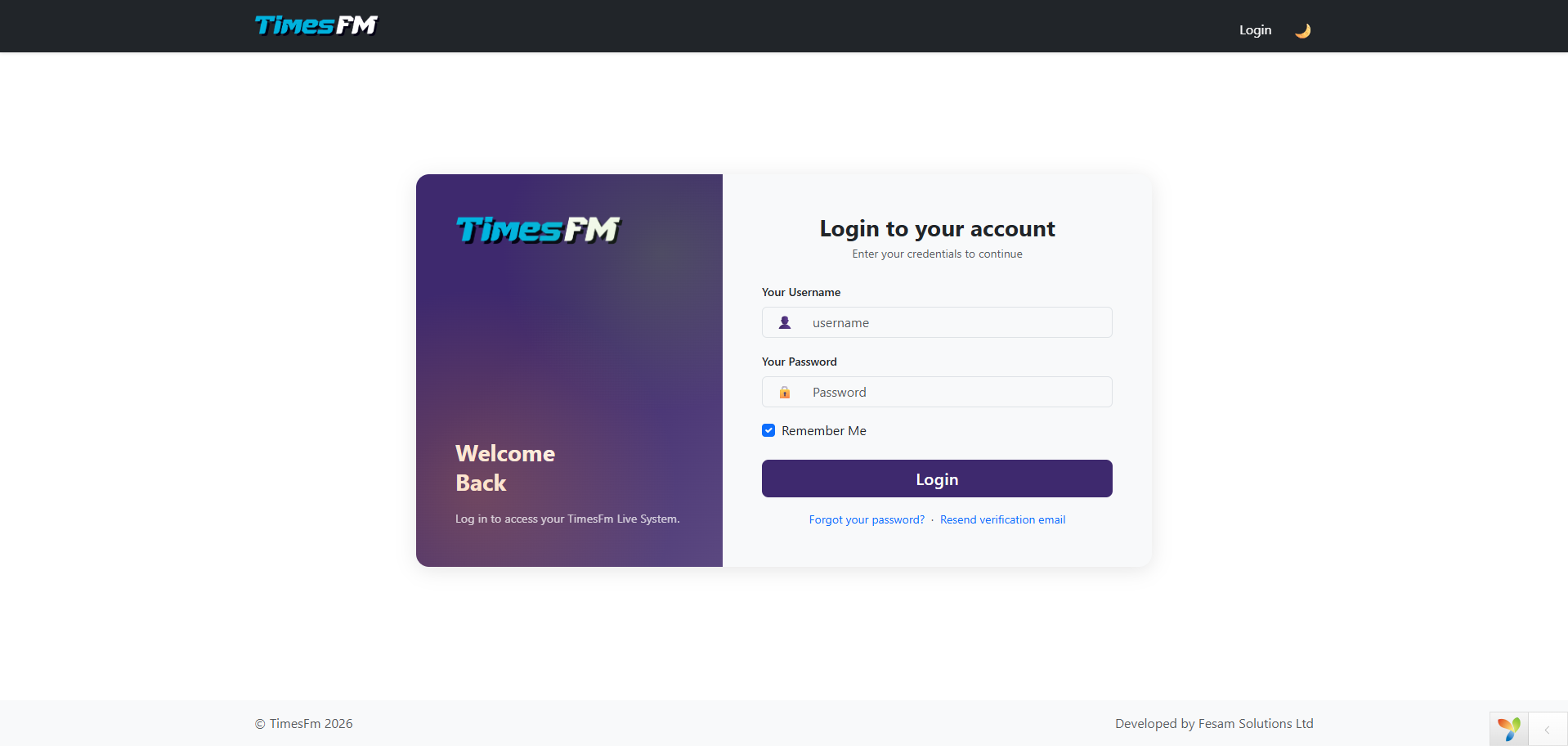
Open your web browser and navigate to the system URL.
Open a browser
Launch Chrome, Firefox, Edge, or Opera and go to the system address (e.g. https://timesfm.tz).
Click "Login"
On the homepage, find the Login button at the top right corner and click it.
Enter your credentials
Fill in your Username and Password as provided by the administrator or as registered. Then click Login.
Successful Login
Once logged in successfully, you will be automatically redirected to the Admin Dashboard.
⚠ Caution
Always log out when you finish your session, especially on shared or public computers.
2.2 Logout
Click your username in the top-right corner of the page, then select Logout. You will be signed out and redirected to the homepage.
3. Dashboard
3.1 Dashboard Overview
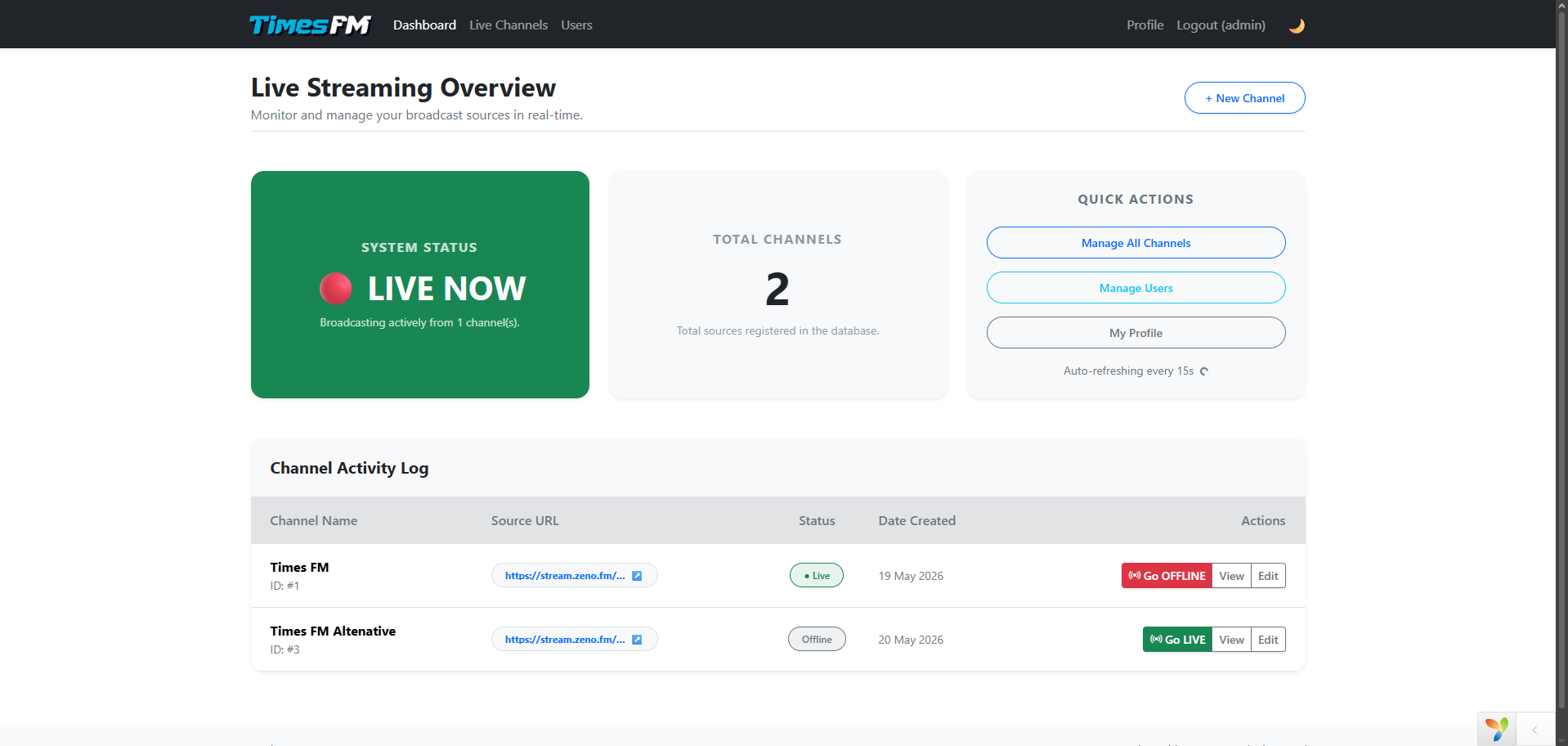
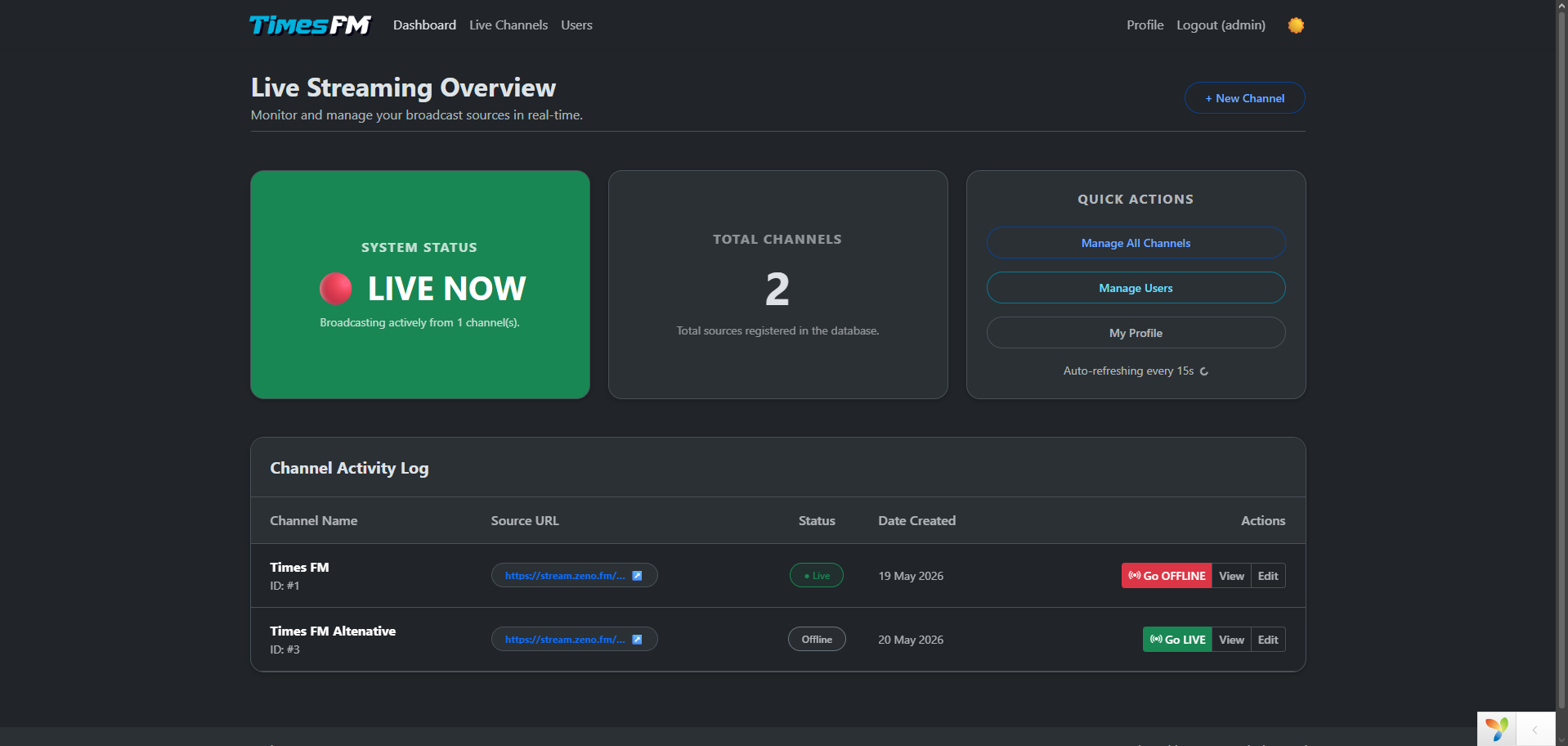
The dashboard is the first page you see after logging in. It has three main cards:
● System Status
The first card shows whether the system is LIVE (green) or OFFLINE (red) depending on whether any channel is currently broadcasting.
● Total Channels
The second card displays the total number of registered channels in the system.
● Quick Actions
The third card contains quick links to main management sections:
- Manage All Channels — Go to the full channel list
- Manage Users — Go to user management
- My Profile — Go to your personal profile
3.2 Channel Activity Log
Below the dashboard cards is a table showing all channels and their details:
| Column | Description |
|---|---|
| Channel Name | Name of the broadcast channel |
| Source URL | Stream URL |
| Status | Channel status: Live or Offline |
| Date Created | Date the channel was created |
| Actions | View, Edit, and toggle status (Go Live/Go Offline) |
3.3 Toggle Channel Status (Live/Offline)
Each row in the table has a toggle button to change the channel status:
- If the channel is LIVE, you will see a Go OFFLINE button
- If the channel is OFFLINE, you will see a Go LIVE button
Before changing the status, a confirmation dialog will appear. When you set a channel to LIVE, all other channels are automatically turned off.
4. Live Channel Management
4.1 Channel Index
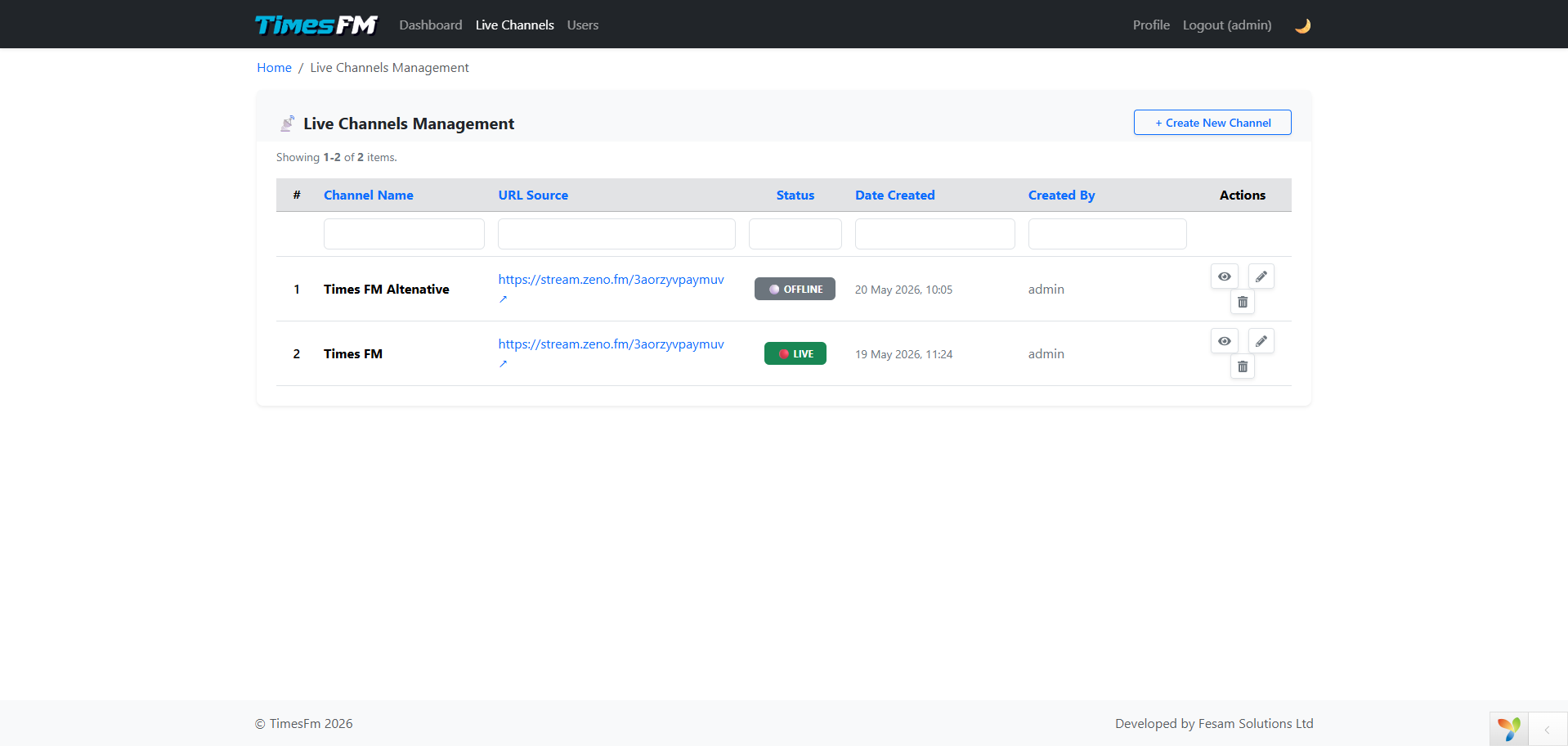
This page displays all registered channels. You can sort, filter, and search using the filter fields above the table.
| Column | Description |
|---|---|
| Serial Number | Sequential number |
| Channel Name | Channel name |
| URL Source | Stream URL (Zeno FM format required) |
| Status | Filter by LIVE or OFFLINE |
| Date Created | Date the channel was created |
| Created By | User who created the channel |
| Actions | View, Update, Delete |
4.2 Creating a New Channel
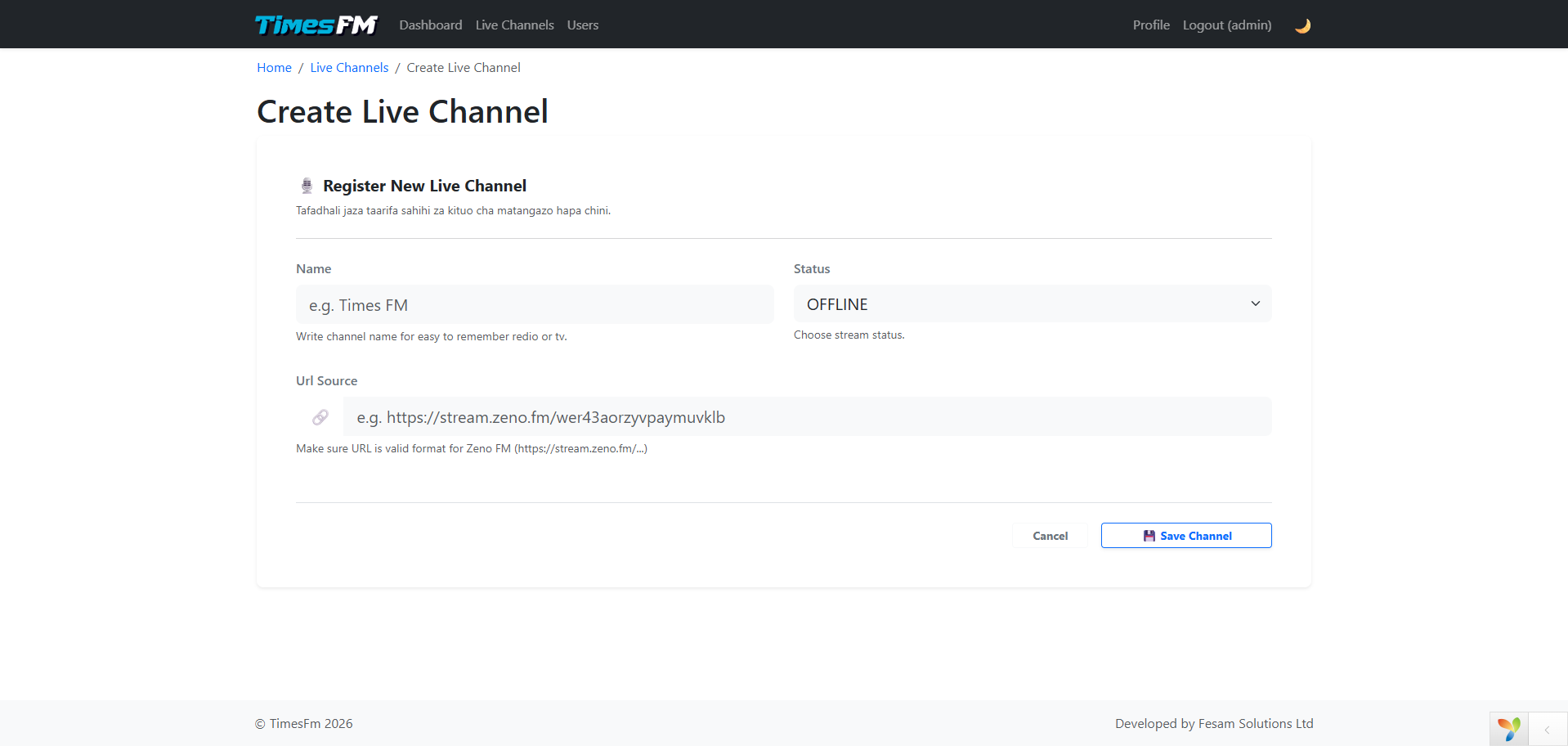
Click "+ Create New Channel"
This button is at the top of the Live Channels page table.
Fill in the Form
Name: Channel name (e.g. "Times FM Sports")
Status: Choose LIVE or OFFLINE
URL Source: Full stream URL (e.g. https://stream.zeno.fm/wer43aorzyvpaymuvklb)
Click "Save Channel"
Once complete, click the save button. You will be redirected to the new channel details page.
⚠ URL Validation
The system validates that the URL follows the Zeno FM format. Make sure you use a valid URL. Example: https://stream.zeno.fm/abcdef12345
4.3 Viewing Channel Details
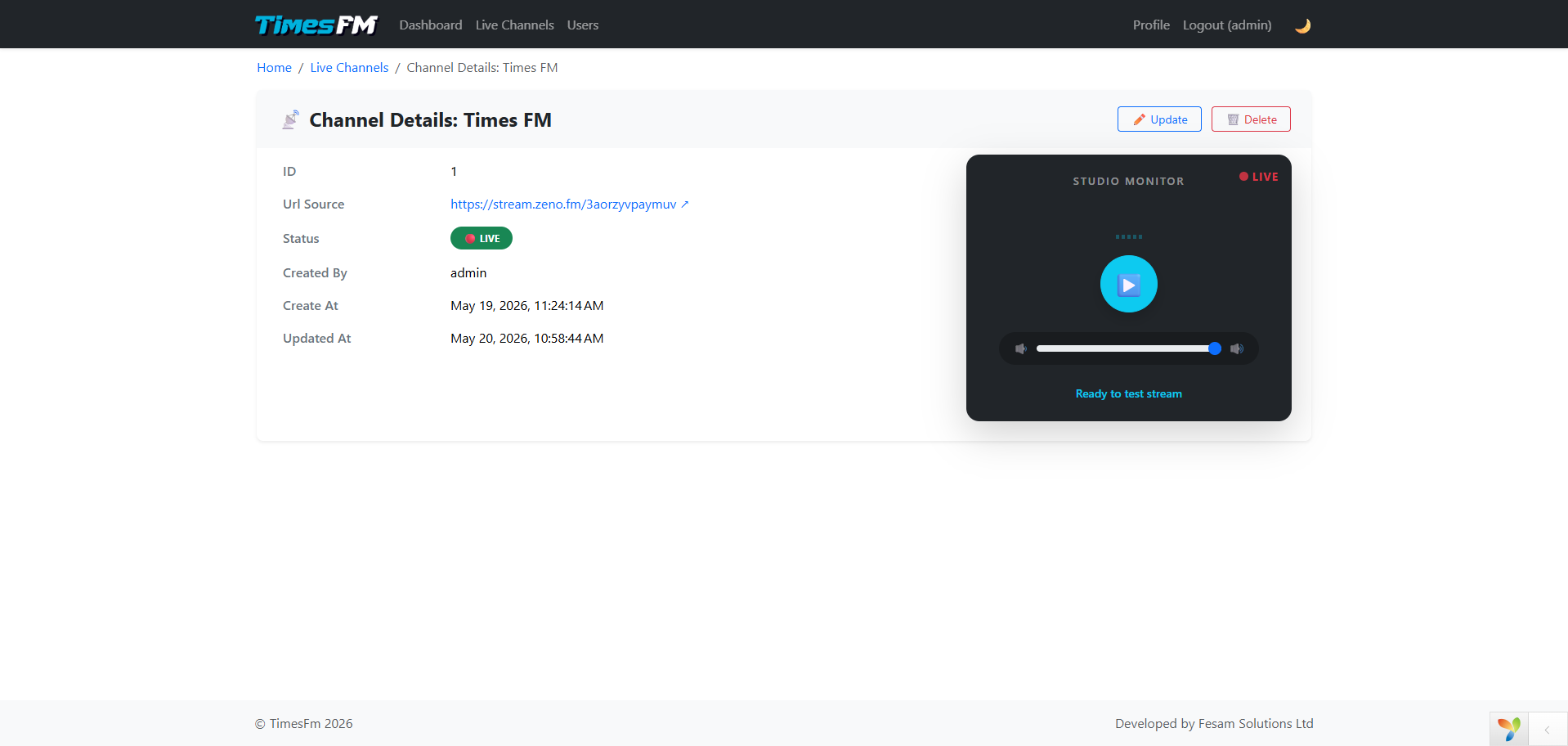
Click the View button on the channel table to see full channel details. This page has two sections:
- Left side: Channel details (ID, URL, Status, Created By, timestamps)
- Right side: Stream player that lets you listen to or watch the broadcast in real-time
Using the Stream Player
- Click the ▶ (Play) button to start listening
- Click ■ (Stop) to stop
- Use the volume slider to adjust the audio level
4.4 Editing a Channel
Click Edit on the table or Update on the details page. You can modify the channel name, status (LIVE/OFFLINE), and stream URL.
4.5 Deleting a Channel
Click Delete on the channel details page. You will be prompted to confirm before deletion.
ⓘ Note
Channel deletion is permanent and cannot be undone. Please be certain before proceeding.
5. User Management
5.1 User List
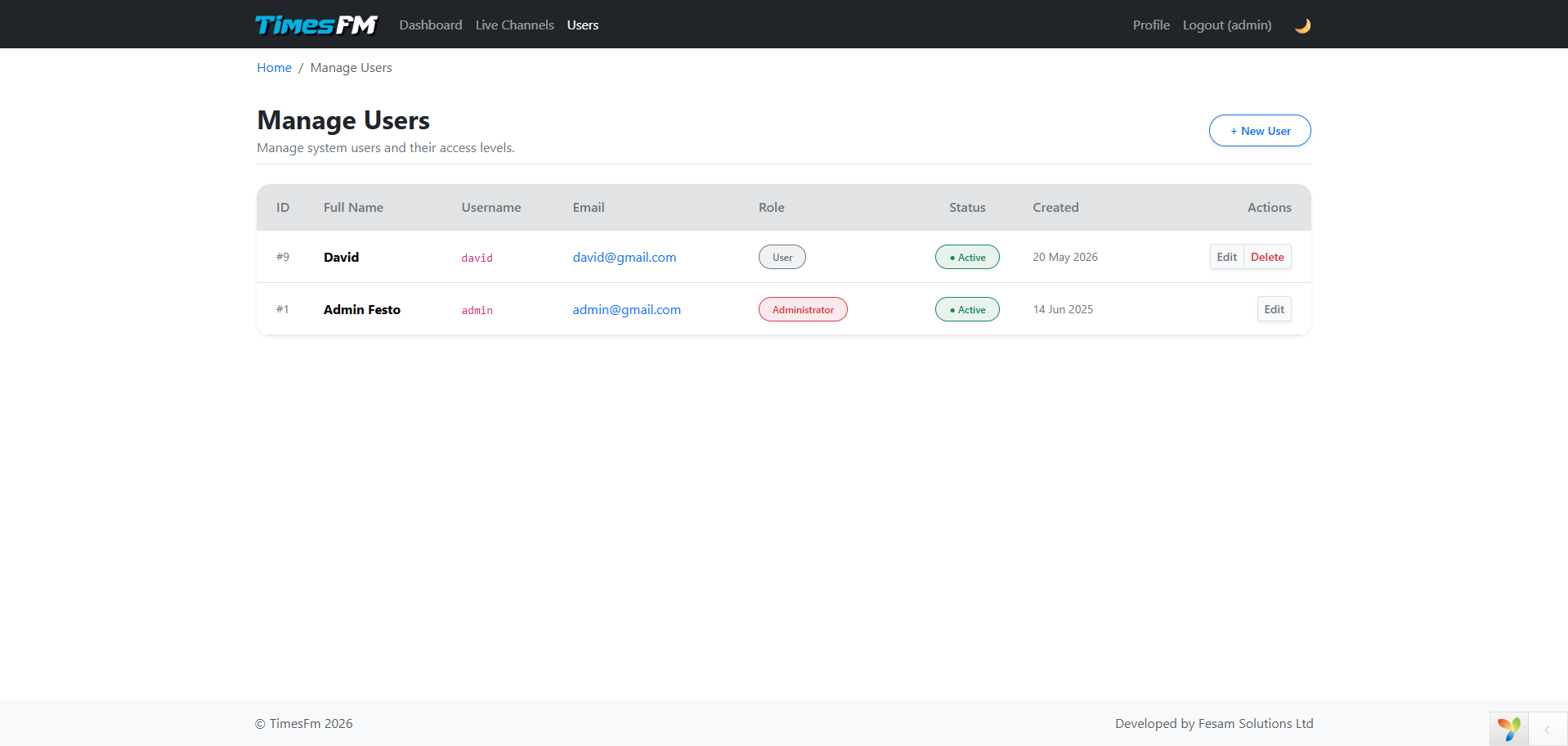
This page displays all registered system users. Each user shows:
| Column | Description |
|---|---|
| ID | Identification number |
| Full Name | User's full name |
| Username | Login username |
| Email address | |
| Role | Role: Administrator, Owner, or User |
| Status | Status: Active, Inactive, or Deleted (click to toggle) |
| Created | Registration date |
| Actions | Edit and Delete (Delete hidden for Administrators) |
5.2 Creating a New User
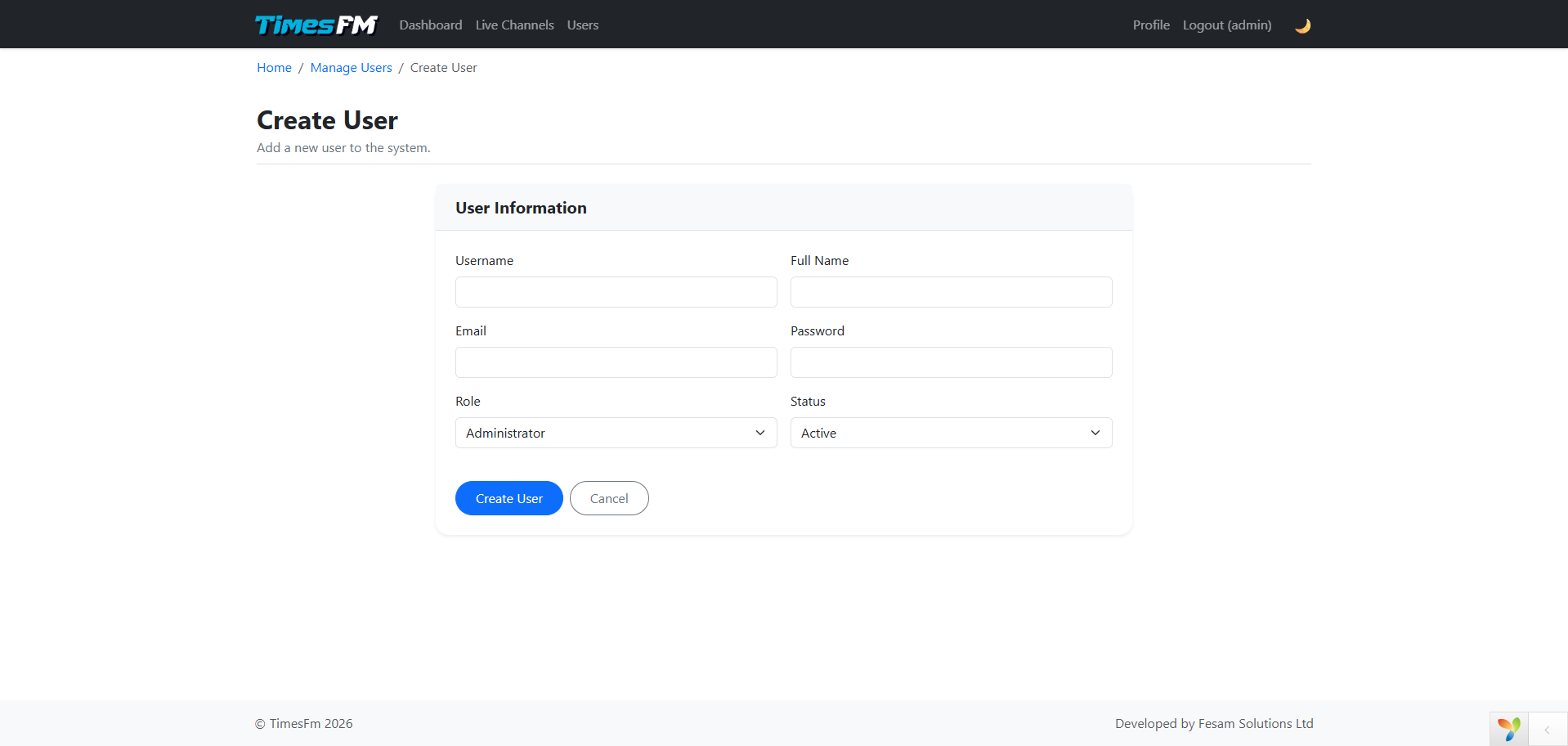
Click "+ New User"
This button is at the top of the user table.
Fill in the Form
Username: Login name (used for authentication)
Full Name: Complete name
Email: Valid email address
Password: Password (minimum 8 characters)
Role: Choose a role (Administrator, Owner, or User)
Status: Active, Inactive, or Deleted
Click "Create User"
The user will be created and appear in the table.
5.3 Editing a User
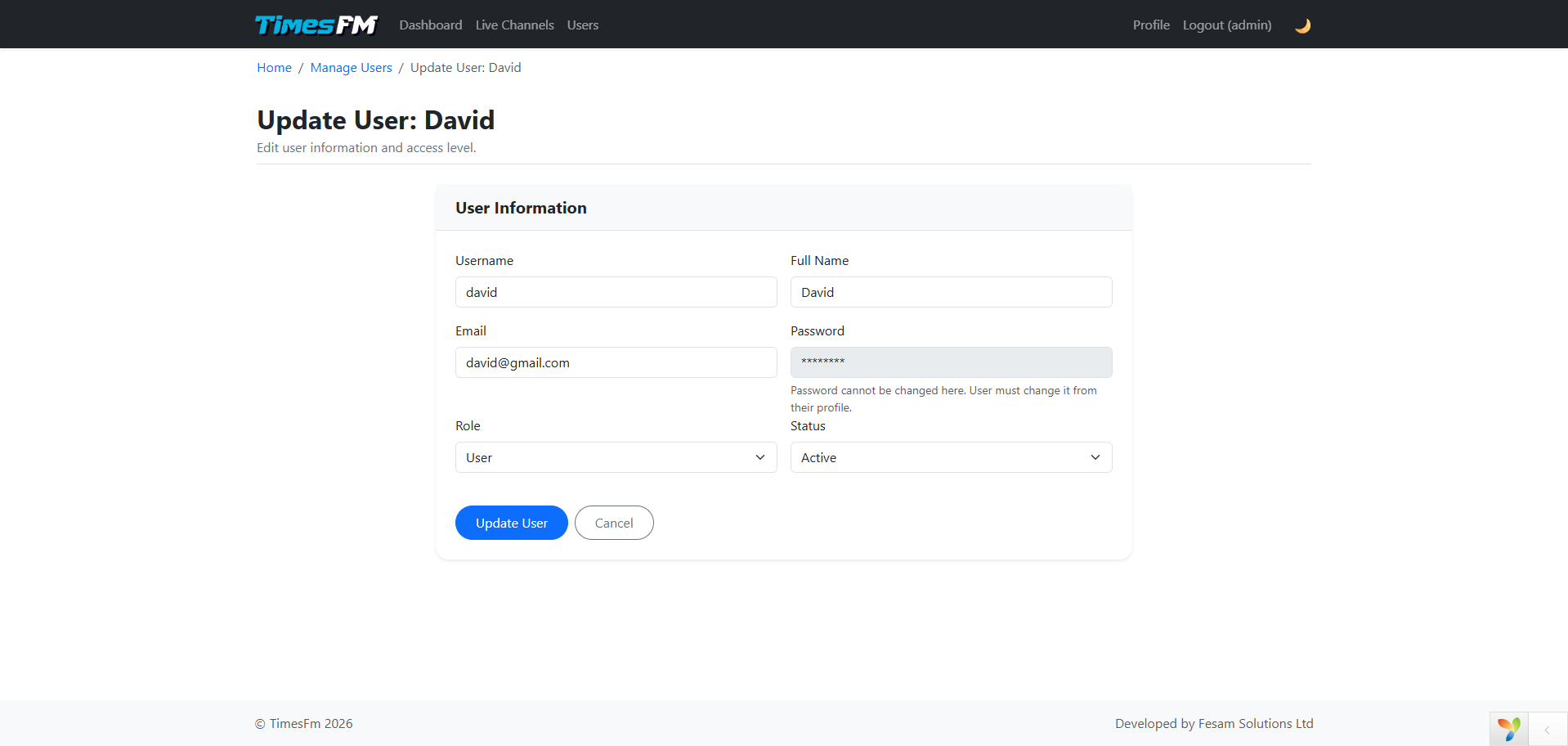
Click Edit on the table. You can modify:
- Username
- Full name
- Role
- Status
Note: Passwords cannot be changed here. Users must change their own password from their profile page.
5.4 Toggling User Status
Click the status badge in the user table:
- If Active, clicking will set it to Inactive
- If Inactive, clicking will set it to Active
Important: Administrator status cannot be changed for security reasons.
5.5 Deleting a User
Click Delete on the table and confirm your action. Administrators cannot be deleted for system security.
6. Profile & Password Change
6.1 Viewing and Editing Profile
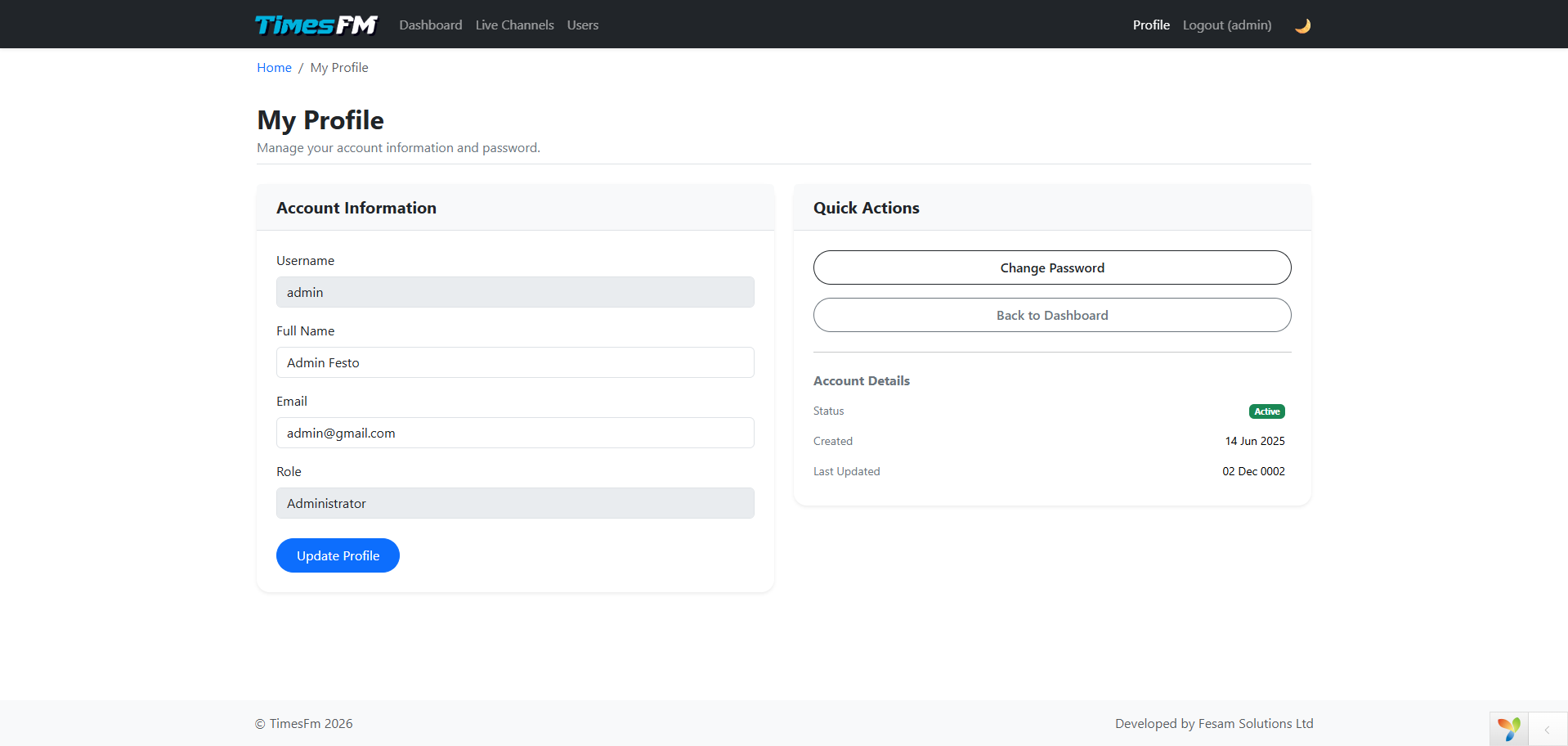
Click Profile on the top menu or My Profile on the dashboard.
Profile Fields:
| Field | Editable? | Description |
|---|---|---|
| Username | No | Login name cannot be changed |
| Full Name | Yes | Update your full name |
| Yes | Update your email address | |
| Role | No | Role cannot be changed from profile |
| Status | No | Status cannot be changed from profile |
Update your information
Enter the new name or email in the form fields.
Click "Update Profile"
Your information will be saved and a success message will appear.
6.2 Changing Your Password
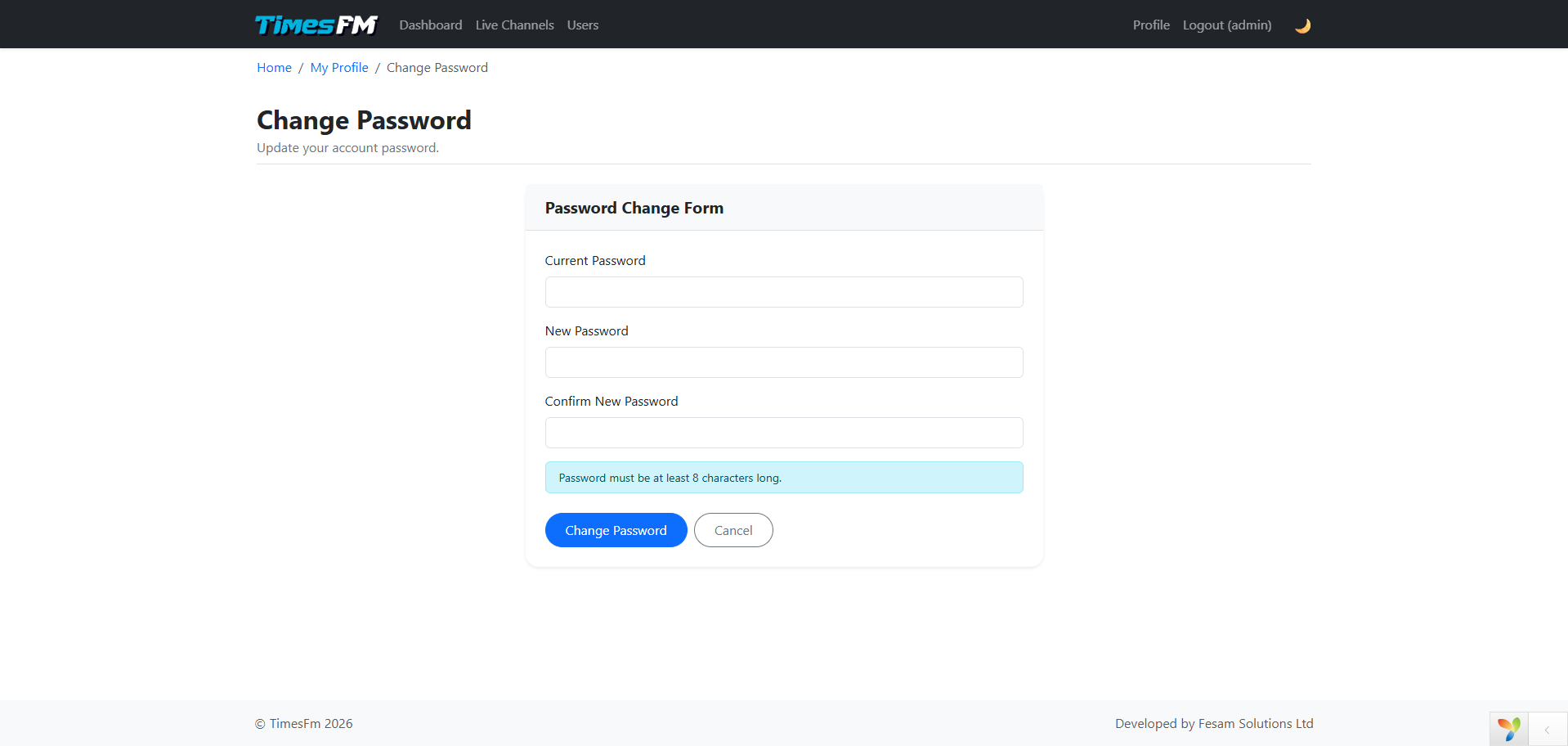
On the profile page, click Change Password to go to the password change page.
Enter your current password
Current Password — the password you are currently using.
Enter a new password
New Password — your new password (minimum 8 characters).
Confirm the new password
Confirm New Password — re-enter your new password for verification.
Click "Change Password"
On success, you will be logged out and asked to log in again with your new password.
⚠ Password Rules
The password must be at least 8 characters long. Use a mix of uppercase, lowercase, numbers and symbols for a strong password.
7. Theme Toggle
7.1 Light and Dark Mode
The system supports switching between Light Mode and Dark Mode. This helps reduce eye strain, especially during prolonged use or at night.
Find the theme button
In the top-right corner, near the Logout button, you will see either a 🌙 (moon) or ☀ (sun) icon.
Click to toggle
If you see 🌙 (moon), the system is in Light mode. Click to switch to Dark mode.
If you see ☀ (sun), the system is in Dark mode. Click to switch to Light mode.
Your choice is saved automatically
The system remembers your preference even after closing the browser. Your chosen theme will persist when you return.
ⓘ Tips
- Light mode — Best for bright environments or daytime use
- Dark mode — Best for dim environments or nighttime use, reduces eye strain
8. Security & Tips
8.1 Security Guidelines
| Guideline | Description |
|---|---|
| Strong password | Use a password with uppercase, lowercase, numbers and symbols (minimum 8 characters) |
| Do not share accounts | Each user should have their own personal account |
| Always log out | Log out when finished, especially on shared computers |
| Change password regularly | Change your password periodically for better security |
| Never share your password | An administrator will never ask for your password |
8.2 Administrator Account Security
⚠ Administrator Rules
- An Administrator cannot be deleted from the system
- An Administrator's status cannot be changed
- Ensure that users granted the Administrator role are trustworthy
8.3 Audit Logs
Every action performed in the system is recorded in the activity logs. This helps with:
- Tracking who did what and when
- Detecting unauthorized usage
- Troubleshooting issues as they arise
9. Troubleshooting
9.1 Cannot Log In
| Issue | Solution |
|---|---|
| Forgot my password | Click "Forgot Password" on the login page and follow the instructions sent to your email |
| "Incorrect username or password" | Check that your username and password are correct. Caps Lock may be on |
| Account is inactive | Contact your administrator to activate your account |
9.2 Theme Issues
| Issue | Solution |
|---|---|
| Theme button does not work | Try closing and reopening the browser. If the issue persists, clear the browser cache |
| Colors do not display correctly | Make sure you are using a modern browser (Chrome, Firefox, Edge 90+) |
9.3 Channel Issues
| Issue | Solution |
|---|---|
| Stream does not play | Check that the URL is correct. Try opening the URL in a new tab to test |
| "URL format is invalid" | Ensure the URL starts with https://stream.zeno.fm/ followed by the identifier |
| Channel not appearing on dashboard | Try refreshing the page or wait 15 seconds for the auto-refresh |
9.4 Other Errors
⚠ If you encounter other errors
- Try refreshing the page (F5 or Ctrl+R)
- Clear the browser cache and cookies
- Try using a different browser
- Contact IT Support for further assistance
ⓘ About This Manual
This manual was created for users of the Times FM system. Current version is v1.0 (May 2026). This manual will be updated as the system improves.
For suggestions or to report errors, please contact the technical support team.